Showing posts with label blended learning. Show all posts

Wednesday, January 31, 2018

Online Portfolios at all levels

Many classes use portfolios to collect evidence of student learning. This can take a few different forms:
  • Evidence of successful completion of a task 
  • Journaling on a project, such as what they learned while going through a process 
  • Reflection on their learning 
  • Pictures or videos that demonstrate understanding or implementation 
When creating a portfolio, teachers may indicate what evidence needs to go in the folder. However, it is also useful to have students choose the best elements to represent their learning. In order to best represent all concepts, a teacher may still guide the necessary components.

Student portfolios can be compiled online in a number of ways. The easiest way in a Google school is with a Google folder. For those of you using Hapara, it seems even easier when you use the Hapara folder created for each student, but just remember that these will be archived at the end of the year! Anyway, here are some alternate ways (not Google Drive) at each level to compile an online student portfolio:


As the state rolls out the Future Ready Index, there will continue to be more and more discussion about evidence of student learning.  This will allow us to focus on deeper levels of learning and what we know to be meaningful.  I hope these tools provide you with a starting point to try a new tool related to this topic.


Wednesday, January 17, 2018

Everfi

The best type of educational technology is robust, flexible and FREE. Those terms are not normally used together. Fortunately, it appears like Everfi might fit this mold. Since they are funded by outside resources, they are free to us!

Everfi has a database of educational and interactive resources to teach concepts from financial literacy to college and career readiness to STEM. Each one has a grade span that it works best for, so it’s definitely worth considering.


One of the weaknesses of Everfi right now is that they do not have single sign-on. That’s a big deal to me because when a website has that, we know Google is not sharing the child’s name with them, but instead sharing a “code” with which to recognize them. Being a little concerned about CIPA and COPPA compliance, I decided to check into it more. It turns out that many schools in our area are already using this for some of their courses, such as financial literacy in the high school.

Students would have to go to everfi.com/register and make an account, so this should really ONLY be used with students 13 or over UNLESS you are going to get permission from their parents to create an account for them. Please also note that Warrior Run student accounts cannot receive outside emails. A teacher can add students from the teacher dashboard, but the same rules would apply for privacy compliance.


Once a student has successfully completed one of the courses, you can print a certificate for them.


Here is an example video overview for the “Ignition” course on Digital Literacy and Responsibility.

Everfi may be free, robust and flexible, but there will be an initial setup for the teacher, and it’s not ideal for every grade level. If you teach one of the topics listed in their K-12 resources and are looking for something that students can work through independently that is also engaging, I recommend you give it a try.

Thursday, August 31, 2017

Chromebook tips and tricks

As we roll out a device to (almost) every student in our district, I thought these few bits of information might be helpful to teachers.


  1. In place of the function keys at the top of the keyboard, there are a number of icon keys which serve some of the same purposes.  Here’s what they do:
Image result for chromebook top keys shortcuts


2. The black bar at the bottom of the screen is called the shelf, and you can “pin” pages there that you want kids to be able to open quickly.  This is especially helpful as an initial setup for our slowest typers. Then it can act like a bookmark for the future.
To do so, just two finger tap the icon of the app/website and say, “Pin to shelf”; if it’s a website, when you have it open, click the three dots in the top right-hand corner and select, “Pin to shelf.”


3. To scroll on a chromebook, use two fingers on the touchpad to push up or pull down.  Hint: this also works on your laptops, teachers.  To right click, tap two fingers on the touchpad.


4. For classroom management purposes, chromebooks can be a distraction.  When entering the classroom, you can use signals to let students know expectations.  For example, use a stoplight to indicate how you will start class.  Red means no device needed, so put it under your seat.  Yellow means not yet.  Green means get ready to go!  Another favorite is “Lids at 45” so that eyes can be on you.  I’m in favor of closing lids to get their full attention, but sometimes goofy things happen when opening them again, so lids at 45 at least removes it from their line of vision.


Chromebooks have lots more fun tips that our students may know more than us.  Don’t be afraid to explore or ask for help!


Wednesday, March 1, 2017

Using Discussion Boards Effectively

With the use of new learning strategies that combine online and face-to-face communication, discussion board posts have become more common in the classroom.  The high school teachers have come to use resources like Google Classroom as an essential part of their routine.  With that in mind, I thought it might be a good idea to share some pros and cons and activity ideas.  Please feel free to respond with tips or tricks that you have found to be effective in your classroom.


Discussion boards can serve a lot of purposes in any content area.  Here are some of the general benefits:
  • Builds a classroom community
  • Allows time for reflection before responding to a prompt
  • Allows students to reflect on each other’s work
  • Develops writing skills


When preparing to use a discussion board, it’s important to make sure it’s effective.  Questions related to discussion boards might include:
  • How do you grade participation in a discussion board?
  • What requirements do you outline in advance for the students?
  • How do you ensure that students do not wait until the discussion is wrapping up to participate?
  • How do you keep students on topic?
  • How often should a teacher respond to posts?
  • Should students have to cite their sources in a discussion post?


I completed my masters online through Clarion University.  Discussion boards were usually used as a question prompt, and I had to answer the question and respond to two classmates.  While I know this may have been beneficial, I did not always feel we were making the most out of the discussion board.  Some other activity ideas include:
  • Ask Experts - Invite someone who knows about the topic to answer questions from your class on the discussion board.  This allows them to participate from any location.  There are plenty of online or community experts who would love the opportunity to answer questions posed by the students and a greater opportunity to participate in the classroom.
  • Debates - While this is something that you may already do face-to-face, it would certainly be possible to use this as an online tool as well, allowing students who might not participate as much in person to craft convincing arguments and think in depth before preparing their rebuttal.  It could be done as an extension or as a side activity while working on a different unit or a different project, so that students could come back to it in their spare time.
  • Polling - In the new ISTE standards from 2016, asking students to gather and analyze data is emphasized.  This is something that is used in a variety of career settings and would be beneficial for them to gather real-world data and then discuss the results on the discussion board.  Google Forms is a great way to start, but there are other web resources, such as PollCode for creating a survey.
  • Role Play - Asking students to role play encourages them to see a new side of a topic.  Having students respond as their “character” lets them consider a new viewpoint.  Another version of this might be de Bono’s Six Thinking Hats, which could be used in conjunction with NEWSELA.
  • Peer Review - Student’s view each other’s work and leave constructive criticism on how they did, allowing for student growth.  They will gain new ideas and see new opportunities by sharing.  In this way, technology broadens the audience of a student’s work.

Learning is social.  Discussion boards have been and will continue to be a basic but effective way of creating learning opportunities for students.  If you have other ideas to add or if you want more resources on the topic, please email your friendly building librarian!


References:

[Chromebook with speech bubbles]. (2013, November 8). Retrieved from
https://www.usnews.com/cmsmedia/80/262f3dff4f667d3009b189975e0aa0/49555FE_DA_discussionboardnewl.jpg

de Bono, E. (n.d.). Six Thinking Hats. Retrieved March 1, 2017, from The de Bono Group
website:http://www.debonogroup.com/six_thinking_hats.php

Finley, T. (2014, August 21). New Classroom Questioning Techniques for the Best Year Ever.
Retrieved March 1, 2017, from Edutopia website:
https://www.edutopia.org/blog/new-classroom-questioning-techniques-todd-finley

International Society for Technology in Education. (2016). 2016 ISTE Standards for Students
[PDF].Retrieved from
_final.pdf?sfvrsn=0.23432948779836327

TeacherStream, LLC. (2010). Mastering Online Discussion Board Facilitation [PDF]. Retrieved
From https://www.edutopia.org/pdfs/stw/edutopia-onlinelearning-mastering-online-discussion-board-facilitation.pdf

Thursday, February 16, 2017

PETE&C Takeaways

Earlier this week, I accompanied a few colleagues to the annual Pennsylvania Educational Technology Expo and Conference (PETE&C) in Hershey, PA.  This is a wonderful (but very crowded) conference organized by PAECT every year.  When thinking about what I want to share out from this opportunity, here are my top takeaways that I hope you can start conversations around:


  1. Seesaw is the go-to platform for digital portfolios in the elementary school setting.  Check out the slideshow by the presenters.
  2. Aurasma is changing the way we interact with our reality, allowing opportunities to scan and see augmented versions of reality.  Some schools use it to give tours of their schools or for seniors to be a visible part of their yearbook.  Matt Hill had the great idea to do this with our Hall of Fame!
  3. The new ISTE standards released last summer highlight so many opportunities for student engagement and active learning.
  4. Vibby allows you to take a video from the internet and crop it so you are only showing your audience the part that you want them to see.
  5. PHeT contains a wide variety of online interactive science activities.
  6. It’s possible for a teacher to learn alongside a student in a content area that they are interested in but not an expert.
  7. It’s important to give students a voice in the changes at their school.
  8. Learning is more powerful when it is directed by the students, such as the example of a session about Breakout boxes conducted by students at a professional conference!
  9. You can do digital Breakout boxes (if you solve the Poe-ch the Raven one, give me and Liz the answer!).
  10. Digital portfolios don’t need to be fancy.  Google sites is the perfect option for students to collect their learning for Google schools.

If you want to see our notes, they can be found here. I hope this will inspire someone to check out something new or start a conversation about innovation for your classroom.  Speaking of innovation, there’s a new WR Twitter account - @wrsdinnovate.  Give it a follow.


Wednesday, April 6, 2016

Best Practices in Classroom Collaboration

As part of my graduate class right now on Online Teaching and Learning, I am learning a lot about collaboration in an online classroom.  As mentioned by the authors of the many articles I read on this topic, many of these ideas can be applied to the traditional classroom, so I thought I would share.  These will be especially useful to those of you using hybrid or blended learning with a station rotation.


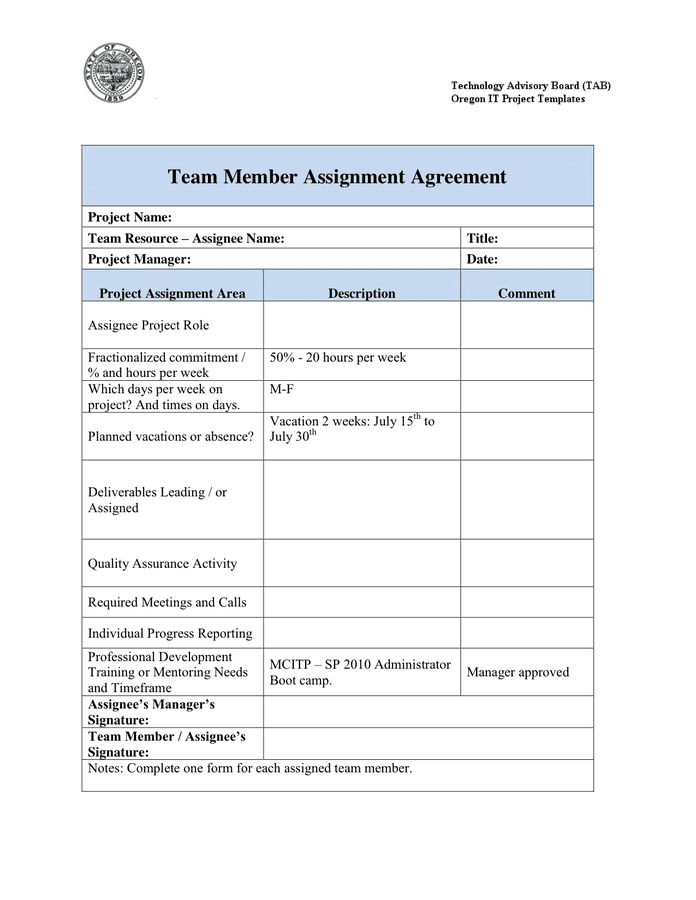
  1. Start with a lesson on teamwork.  Help learners understand team roles, how to be a good team member, and how to resolve conflicts.  One example of this is a lesson where students create guidelines in small groups of what teamwork looks like, then this is refined as a class into a collaboration contract, either for the whole class or for each team.   A sample “Team Agreement” could include:
  • Project Title and Due Date
  • Project objectives and purpose
  • Team members
  • Member expertise or team roles
  • Project tasks and deadlines
  • Deliverables (the new word for the finished product, to put the responsibility back on the student)
  • Conflict management procedure
All members of the class sign this and agree to abide by the parameters in it.  A smaller lesson before diving deep into a more complex project will also help build team rapport and work out any personality conflicts.


  1. Use a two-part collaboration grade - one for the group and one for the individual.  The group grade could have different criteria than the individual grade.  This will help to avoid “loafing”, or a small percentage of the group doing a large percentage of the work.  The individual grade could include a portion of peer evaluations done by group members, for example, students A, B and C give input into the grade of student D.  A sample peer evaluation could include:
    • Does this team member accept responsibility for tasks determined by the team?
    • Does this team member respect differences of opinion and backgrounds?
    • Does this team member provide positive feedback of team member accomplishments?
    • Does this team member keep in contact with team members for the purpose of maintaining team cohesion and collaboration?
    • Does this team member meet team deadlines?
If you’re looking for a good rubric resource, I recommend Cult of Pedagogy’s single-point rubric.  Lay out the expectations and then indicate when they fall above or below those expectations.


  1. Be ready with a list of teamwork problems and possible solutions.  Depending on the age of your students, you may want to mediate conflicts, but encouraging students to work out their own problems leads to a lot of personal growth.  Problems can include team members not contributing, being too bossy, using negative language, personally attacking other team members, technical difficulties, misunderstandings, students who complain, etc.  Hopefully my list doesn’t discourage you from using collaboration - the good outweighs the bad!


  1. Group students according to technical ability, learning style or common interests.  These arrangements will allow for each group to have at least one student who is capable of troubleshooting issues with technology and they will start in the group with something to discuss.  Visual learners can create a comic, kinesthetic learners could design a webpage, auditory learners can create a song, etc.  This also allows for more personalization and student-driven learning.


  1. Consider blogging for conducting class discussions.  Margaret Anderson, a professor at the State University of New York at Cortland, starts with a question the first week that everyone answers directly.  Then in the following week, students are encouraged to respond to a class member’s post.  Be careful about grading by counting posts - quality over quantity, in order to create equitable access.  Some students might work on this at home, but that is not a possibility for all of our students.  Blogging encourages reflection and connection to the real world and their lives, which makes more synaptic cell-to-cell bridges, thus increasing dendritic growth. The other advantage of blogging is that posts are timestamped, so you can see when the post was completed.  If this sounds like a possibility to you, check out kidblog.org or consider blogger.com, since it works seamlessly with our Google accounts.  If you prefer to keep it simple, stick with Google Classroom for threaded discussion posts.

I hope you are able to use at least one of these ideas.  Please feel free to send me more ideas for a future post - I learn a lot from my colleagues.  Please also let us know if you want help with implementing any of these ideas.  We are a resource, so use us!

Wednesday, March 30, 2016

Science and Educational Technnology


We have shared a lot of “big picture” blogs with you lately, so we narrowed our focus to one content area this week.  In coming weeks, we’ll focus on specific content areas, one at a time.  Last time, we focused on math.  This week, we focus on SCIENCE.  In the post below, you’ll find TOOLS, RESOURCES, and IDEAS related to SCIENCE and EDUCATIONAL TECHNOLOGY*.  


TOOLS


This “web-based series of short, animated science mysteries is designed to inspire 4th - 8th graders.  It encourages students to solve problems, and think uniquely, creatively, and critically.”


“A series of videos answers simple science questions intended to inspire elementary students” (K-6).  Made for teachers by teachers, this tool features “open-and-go” lessons and complete curriculums.


Many teachers at Warrior Run use Kahoot to check for understanding at various points.  Science kahoot


A Google Add-On for Docs, Sheets, and now Forms, g(Math) allows you “create  rich math [and science] expressions and graphs for direct insertion into Google Doc, Sheet, or Form.”  A recent update includes handwriting and voice entry!


If you would like your students to have access to any of these, just email Greg.


RESOURCES


Watch videos and practice skills for almost any science subject.  Subjects include traditional fields of biology, chemistry, and physics, but move on to cosmology, health, and engineering -- and more!  Teachers and students can create accounts with their Google single sign on.


Shmoop’s Learning Guides are like a new-school Cliff’s Notes.  For science, students can access learning guides in Biology, Chemistry, and Physics.  Students and teachers can prepare for AP Science tests too!  Shmoop offers accounts for teachers and students through Google single sign on.


A showcase of “dozens of options for integrating technology into the science curriculum, from virtual labs to computational tools.”


A list of 125 science-related site for kids and teachers.


IDEAS


Students Further Their Own Learning
In this article, a teacher asks his students to find videos on a concept (in this case, probability) that are under four minutes.  He asks them to share the video in a simple Google Form, and in the process, they learn more about a specific concept, criteria to discuss the video’s effect, and how to locate information.


Students + Screencasts = Science Review Archive
Think about your final exam, and the review sessions you have traditionally done with your students.  What if you gave the students more responsibility?  Assign a student (or pair of students) a particular concept or problem.  Ask them to explain it to the class in a screencast.  They could use Google Drawings and g(Math) to illustrate/show their work, while using their voices to explain the process.  Most screencast tools save to Google Drive, so sharing is pretty easy.  They could add them to Google Classroom or you could upload them to a website or your YouTube Channel**.  Here is an example of one teacher’s Algebra class notes.  And this article explains how screencasts turn students into digital teachers.


Twitter has become pretty popular with teachers at Warrior Run -- the high school science teachers use it regularly to communicate with their students.  Bill Nye taught an entire science class through Twitter!  What if you used it to connect with other students, other schools, other states, other countries?  Here’s a list of 50 ways to use Twitter in the classroom.


-------------------------------------------------------------------------------------------------------------------------
* Please note, just because technology is new, doesn’t mean it’s always better.  If traditional flashcards work for you and your students, keep using them!  But if StudyBlue could work for you, ask some of your kids to give it a whirl.
** We all have YouTube accounts connected to our WRSD Google accounts.