Showing posts with label learning management system. Show all posts

Wednesday, December 13, 2017

Keep Learners on Task with Focused Browsing

Hapara has recently rolled out great updates designed to “refocus learners on the task at hand.”  Their updated include Open Tabs, Focused Browsing, Scheduled Browsing, and Viewing Browsing in Progress.
This blog post will focus on Focused Browsing.  See what I did there?
Focused browsing allows teachers to focus their students on a specific site for a specific amount of time.  While focused browsing is active, students cannot open new tabs, go to a different tab, or browse new/other URLs.  This helps them stay on task without getting distracted.
This is ideal for online assessments.  If you give quizzes, tests, or other timed exercises online, now you can eliminate the worry of cheating and plagiarism simply with focused browsing.  If you’ve thought about online assessments but weren’t sure how to overcome the worry, focused browsing is the way to go.
There are several options for customization in focused browsing:
  • Allow students to go anywhere within a particular site or limit them to only select pages
  • Time limits up to 3 hours
  • What happens at the end of the session, whether you close the pages or keep them open

If you're intrigued by focused browsing, give it a try in class! And then click here to see the rest of Hapara’s new updates.

Thursday, September 7, 2017

Sapphire Test Builder


Sapphire, our new Student Information System (SIS) allows us to do a lot of things.  To name just a few, we can take attendance, manage grades, and see student schedules.  Additionally...

In Sapphire, we can also create, give, and grade tests.*

As Sapphire explains, this tool "enables teachers to create any type of online test, homework or survey; set time limits; shuffle questions; monitor, auto-grade and allow retakes. District, building, grade, subject or common core-level question banks encourage the use of proven standards and districtwide sharing. Images, audio, video, threaded discussions and digital content can be added to course web pages. By combining the capabilities of the Teacher Gradebook and Test Builder, teachers are able to author and deliver virtual courses and classrooms."

You can use Sapphire's Test Builder at ALL LEVELS in ALL CONTENT AREAS.

Getting Started
After logging into Sapphire, choose "Test Builder."

The Test Builder page looks like this.

Click "Create New Test," then start adding questions.

When you're done, you can assign it to your class(es).  Students' tests can be graded immediately, then automatically uploaded to your Gradebook.  Having this Testbuilder directly connected to your Gradebook within Sapphire will make for smooth transitions.

Below, I've included links to incredibly helpful tutorials.  Please use them at your convenience.  If you need help, please just ask!


Helpful Information

This comprehensive manual will take you through the process from beginning to end, with "what if" scenarios as well.  (It's also embedded below.)

Videos

You can access the manual and the videos by clicking the HELP button in Sapphire, on the upper right corner of your screen.  Just type "test builder" into the search bar.

*If you were previously using Lightning Grader, please use Sapphire's Test Builder from now on.


Monday, December 21, 2015

Hapara - Learning Management System for Google for Education (Part 1)


A learning management system (LMS) is an online application for the administration, documentation, tracking, reporting and delivery of electronic educational technology.  Basically, it’s a way to stay organized when using the internet for your classroom.

At Warrior Run in the Middle and High School levels, we started the year with a subscription to Hapara, which I have heard some call, “Google on steroids.”  In the 1:1 device classroom, it offers the teacher many advantages for keeping resources organized, keeping kids on task and disseminating information to students.  If you are just starting out, the most helpful parts to try out include:


Smart Share
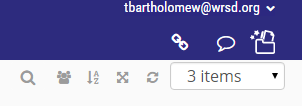
When you first start out, you can use the icons at the top right to share.  This will bring up the “Smart Share” screen, where you will choose the document you want to share, how you want it shared (copy for each student, read only, comment only, or editing ability), and to whom you want to share it (entire classes, individual students or groups).  When you do this, it puts in their folder for your class in Google Drive.  It can take some time for it to share all and a progress bar will show at the bottom of your screen.  Do not exit the dashboard until all files are shared.


Open Tabs for Students
Whether you want to quickly recommend a site to a student doing research or you want to open the same site for all students to save them time from typing in the URL, this is a very useful feature.  Either press the link icon in the blue bar to do it for all, or use the individual one next to a student’s name.  Kids will be impressed by your “magical powers” and it will save precious class time.

Send messages to students
Keep students on task, remind them of what was stated in the instructions or redirect them when they start to lose attention.  This saves face for the student but also differentiates and keeps them focused.

If you have any more questions about Hapara, check out our slideshow or see your librarian!