Showing posts with label hapara. Show all posts

Wednesday, December 13, 2017

Keep Learners on Task with Focused Browsing

Hapara has recently rolled out great updates designed to “refocus learners on the task at hand.”  Their updated include Open Tabs, Focused Browsing, Scheduled Browsing, and Viewing Browsing in Progress.
This blog post will focus on Focused Browsing.  See what I did there?
Focused browsing allows teachers to focus their students on a specific site for a specific amount of time.  While focused browsing is active, students cannot open new tabs, go to a different tab, or browse new/other URLs.  This helps them stay on task without getting distracted.
This is ideal for online assessments.  If you give quizzes, tests, or other timed exercises online, now you can eliminate the worry of cheating and plagiarism simply with focused browsing.  If you’ve thought about online assessments but weren’t sure how to overcome the worry, focused browsing is the way to go.
There are several options for customization in focused browsing:
  • Allow students to go anywhere within a particular site or limit them to only select pages
  • Time limits up to 3 hours
  • What happens at the end of the session, whether you close the pages or keep them open

If you're intrigued by focused browsing, give it a try in class! And then click here to see the rest of Hapara’s new updates.

Wednesday, September 13, 2017

Saving class time with typing shortcuts

One gripe that I have heard a lot about students in the past five years is the lack of typing skills and the way that this interrupts instructional time.  While our district has taken steps to add to the time focusing on building these skills, there’s still only 24 hours in a day, so I thought I might share some ways that you can limit the typing for students or allow them to work on these skills during free time.


  1. Use the shelf on the chromebooks or create webpage icons on the iPads.
  2. Bookmark pages that students will visit frequently.
  3. Use a URL shortener like goo.gl or tinyurl.com.
  4. Share to them in Hapara/Drive/Email and tell them where to find the link.
  5. Also in Hapara, push out a link to all students.
  6. Create a Symbaloo page for your class with all the links you need.  Students can have a shortcut to that, and then just click the tool they will use that day.
  7. Use QR codes to login (Greg is working on this for Elementary).
  8. In Chrome, use the App Launcher.
  9. In iOS, Air Drop to your students.
  10. Allow students to use one of varying typing skills websites, such as typing.com or nitrotype.com, if they finish their work early.

If you have questions or need help with these items, please let me or one of your building tech helpers know.  We will always be glad to help.  Together, we will make 21st century learners that know where to find the W on the keyboard.

Image result for typing funny

Thursday, February 25, 2016

Collaboration is Effective


Effective teachers make the most of their resources, even if it's just brainstorming with their librarians/"techbrarians."  As a result of these brainstorms, exciting projects are occurring in our schools right now!  So this blog post serves to highlight a few of them!


Bold/italic links will take you to actual student projects.
  • Brent Gordner's Sports & Entertainment Marketing students worked in teams in the library to advertise a school event.  This year, it was the faculty/seniors basketball game.  They share compelling marketing strategies on websites they build using Weebly.
  • In response to student inquiry around the upcoming election, Brian Shaffer and Amy Swartz had their 9th and 10th grade World Cultures/AP World History students find and share their own answers.  
  • Courtney Shandera and Megan Seymore have their English 9 students choose independent reading books each quarter.  For their culminating projects:
    • In Q1, they made book trailers using WeVideo.  
    • In Q2, they created infographics to show a journey from their books (character, setting, or plot) using Piktochart.  
    • In Q3, we plan to share book talks using Sound Cloud.  
    • These projects were done independently (as was their reading), then shared with their teacher in a Google Form.  The entire list was then shared with all English 9 classes so students could complete cross-class "peer review" exercises.
  • 8th grade Science students use Google Drawings to create and add illustrations to lab reports for Eric Greb.
  • Jeremy Betz works with Theresa Bartholomew to complete paperless research projects with 7th grade Social Studies classes.  They use Google Docs, Slides, and Forms, plus Noodle Tools Express to formulate, organize, and answer research questions.
  • Sarah Cronin and Nancy Mathna check their 6th grade Language Arts students' understanding by embedding Youtube videos in Google Forms, which are used as online quizzes.  They then grade these quizzes using Flubaroo.
  • With their 5th and 7th grade Language Arts/Social Studies students, Amy Bowers and Megan McCormack utilize Hapara to distribute independent station activities to their students in their hybrid classrooms.


  • Deanna Dincher and Megan Munyat work together to promote art and literacy.
    • Gifted student enrichment
    • Annual Art & Literacy Night
  • Teachers collaborate with the librarian to reinforce literacy concepts
    • Word walls
    • Crocodile game and Great White Shark game to reinforce basic skills


Please continue collaborating!  
Students benefit from collaborating with each other - we can too.


Monday, December 21, 2015

Hapara - Learning Management System for Google for Education (Part 1)


A learning management system (LMS) is an online application for the administration, documentation, tracking, reporting and delivery of electronic educational technology.  Basically, it’s a way to stay organized when using the internet for your classroom.

At Warrior Run in the Middle and High School levels, we started the year with a subscription to Hapara, which I have heard some call, “Google on steroids.”  In the 1:1 device classroom, it offers the teacher many advantages for keeping resources organized, keeping kids on task and disseminating information to students.  If you are just starting out, the most helpful parts to try out include:


Smart Share
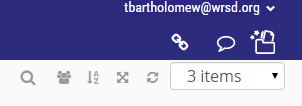
When you first start out, you can use the icons at the top right to share.  This will bring up the “Smart Share” screen, where you will choose the document you want to share, how you want it shared (copy for each student, read only, comment only, or editing ability), and to whom you want to share it (entire classes, individual students or groups).  When you do this, it puts in their folder for your class in Google Drive.  It can take some time for it to share all and a progress bar will show at the bottom of your screen.  Do not exit the dashboard until all files are shared.


Open Tabs for Students
Whether you want to quickly recommend a site to a student doing research or you want to open the same site for all students to save them time from typing in the URL, this is a very useful feature.  Either press the link icon in the blue bar to do it for all, or use the individual one next to a student’s name.  Kids will be impressed by your “magical powers” and it will save precious class time.

Send messages to students
Keep students on task, remind them of what was stated in the instructions or redirect them when they start to lose attention.  This saves face for the student but also differentiates and keeps them focused.

If you have any more questions about Hapara, check out our slideshow or see your librarian!