Showing posts with label presentation. Show all posts

Wednesday, September 5, 2018

Digital Presentation Tools

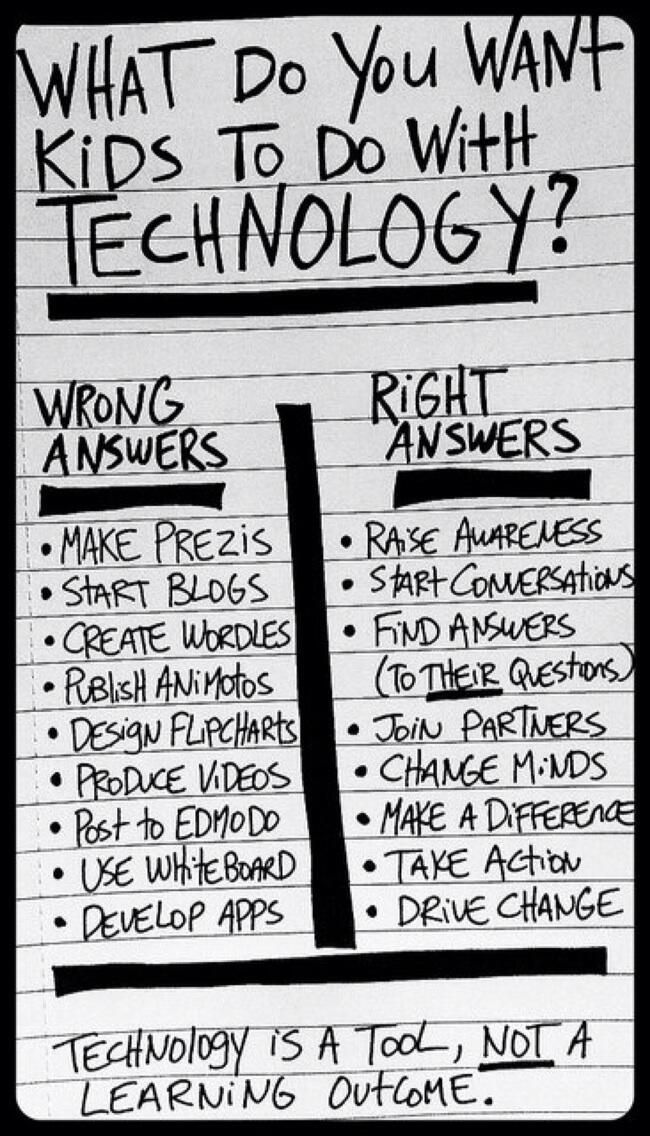
Storytelling, multimedia and digital presentation is just one way that technology can be meaningfully integrated into instruction.  Technology becomes powerful when students are doing the creating.  This blog post will be a refresher on some great digital tools for presentation creation.  Some of them may be new to you, so check them out!

Tool
Video Tutorial
Example
Adobe Spark
Flipgrid
Sutori
Prezi
Google Slides
PowToon
Easy ESL Games (made with PowToon)

All of these have single sign-on with Google, so use your Google account to test them!


Friday, February 24, 2017

Green Screen

If you've ever watched the weather segment on your local news, you've experienced green screen technology.  While it isn't exactly brand new, it is still exciting!  

What is green screening exactly?
It is a video technique that utilizes a green background in front of which moving subjects (like students!) are filmed and which allows a separately filmed background to be added to the final image.

What equipment does it involve?

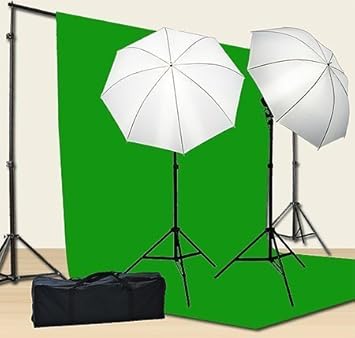
  • Green background - in the HS and MS libraries, we have green screen kits that look like the picture below
  • Green screen app - we have an app called DoInk on our iPads for students to create images and videos using different backgrounds
Image result for chromakey green screen kit


How can we use it?
Honestly, the possibilities are endless!  To give you a few starters,
  • Mrs. Travelpiece's 9th grade English students have filmed a few green screen pieces to use within their book trailer videos.
  • 5th grade science students learned about volcanoes with Mrs. Kramer and Ms. McCormick.  One of the options for the summative assessment was to "report live" from an erupting volcano.  So their background was a volcano, then they filmed themselves giving a news report.  Here is an example:


Why should we do green screen projects?
Projects like this lend themselves well to alternative assessments and creative project-based learning.  Students will learn to plan for multimedia pieces, like a story board.  They would possibly need to write scripts, collect props, find images or videos for their background.  Students acquire knowledge in lessons, then apply it in this sort of project.  Secondary skills are developed as students work with classroom content.

Do green screen videos need people as subjects?
No!  Many green screen projects involve inanimate objects, animation, and stop-motion animation.  So many options!

This sounds cool!  How do I get started?


Thursday, February 16, 2017

PETE&C Takeaways

Earlier this week, I accompanied a few colleagues to the annual Pennsylvania Educational Technology Expo and Conference (PETE&C) in Hershey, PA.  This is a wonderful (but very crowded) conference organized by PAECT every year.  When thinking about what I want to share out from this opportunity, here are my top takeaways that I hope you can start conversations around:


  1. Seesaw is the go-to platform for digital portfolios in the elementary school setting.  Check out the slideshow by the presenters.
  2. Aurasma is changing the way we interact with our reality, allowing opportunities to scan and see augmented versions of reality.  Some schools use it to give tours of their schools or for seniors to be a visible part of their yearbook.  Matt Hill had the great idea to do this with our Hall of Fame!
  3. The new ISTE standards released last summer highlight so many opportunities for student engagement and active learning.
  4. Vibby allows you to take a video from the internet and crop it so you are only showing your audience the part that you want them to see.
  5. PHeT contains a wide variety of online interactive science activities.
  6. It’s possible for a teacher to learn alongside a student in a content area that they are interested in but not an expert.
  7. It’s important to give students a voice in the changes at their school.
  8. Learning is more powerful when it is directed by the students, such as the example of a session about Breakout boxes conducted by students at a professional conference!
  9. You can do digital Breakout boxes (if you solve the Poe-ch the Raven one, give me and Liz the answer!).
  10. Digital portfolios don’t need to be fancy.  Google sites is the perfect option for students to collect their learning for Google schools.

If you want to see our notes, they can be found here. I hope this will inspire someone to check out something new or start a conversation about innovation for your classroom.  Speaking of innovation, there’s a new WR Twitter account - @wrsdinnovate.  Give it a follow.


Wednesday, October 19, 2016

Google Explore

“This presentation looks boring and bland.  How do I make it better?”

If this sounds familiar, Google is a step ahead of you -- they launched their updated EXPLORE feature just this month.

EXPLORE has been a feature of Google Sheets for quite some time, allowing users to see data in color graphs and summaries.

But now users can EXPLORE in Google Slides and Docs as well!

In Slides (Google’s version of PowerPoint), EXPLORE prompts users to enhance the look and feel of individual slides and entire presentations.  As the Google Docs Blog explains, “as you work, EXPLORE dynamically generates design suggestions… apply a recommendation with a single click.”  This saves you time AND makes you look good!


Using EXPLORE in Google Slides is an excellent addition for making intriguing presentations.  With Google’s integration of presentation themes and compatibility with third-parties like Slides Carnival* and Slide Share**, everyone can create and update presentation masterpieces.

In Google Docs, use EXPLORE to get suggestions based on your document’s content.  Recommendations could include images and content, as well as related information from the web or YOUR DRIVE.


Read more about Google’s EXPLORE feature on their blog: "EXPLORE in Docs, Sheets and Slides makes work a breeze -- and makes you look good too."


* Slides Carnival hosts Google Slides themes for all occasions.  Simply download a theme, then import it in Google Slides.

** Slide Share allows you to share what you know through presentations and infographics -- you can browse, download, and edit what others share too.

Wednesday, October 12, 2016

VR in the classroom

It can be fun and scary to think about the future.  There’s so much uncertainty, so much worry, but my sanity requires me to focus on the positive and the possibilities for the future, especially the future of education.


That’s why I’m excited to explore the idea of virtual reality (VR) in education.  It’s not like I think we are all going to have VR headsets next year for our independent stations, but it’s pretty exciting to consider the possibilities as this technology becomes more mainstream (and therefore more affordable).  It’s not a “right now,” but “soon.”


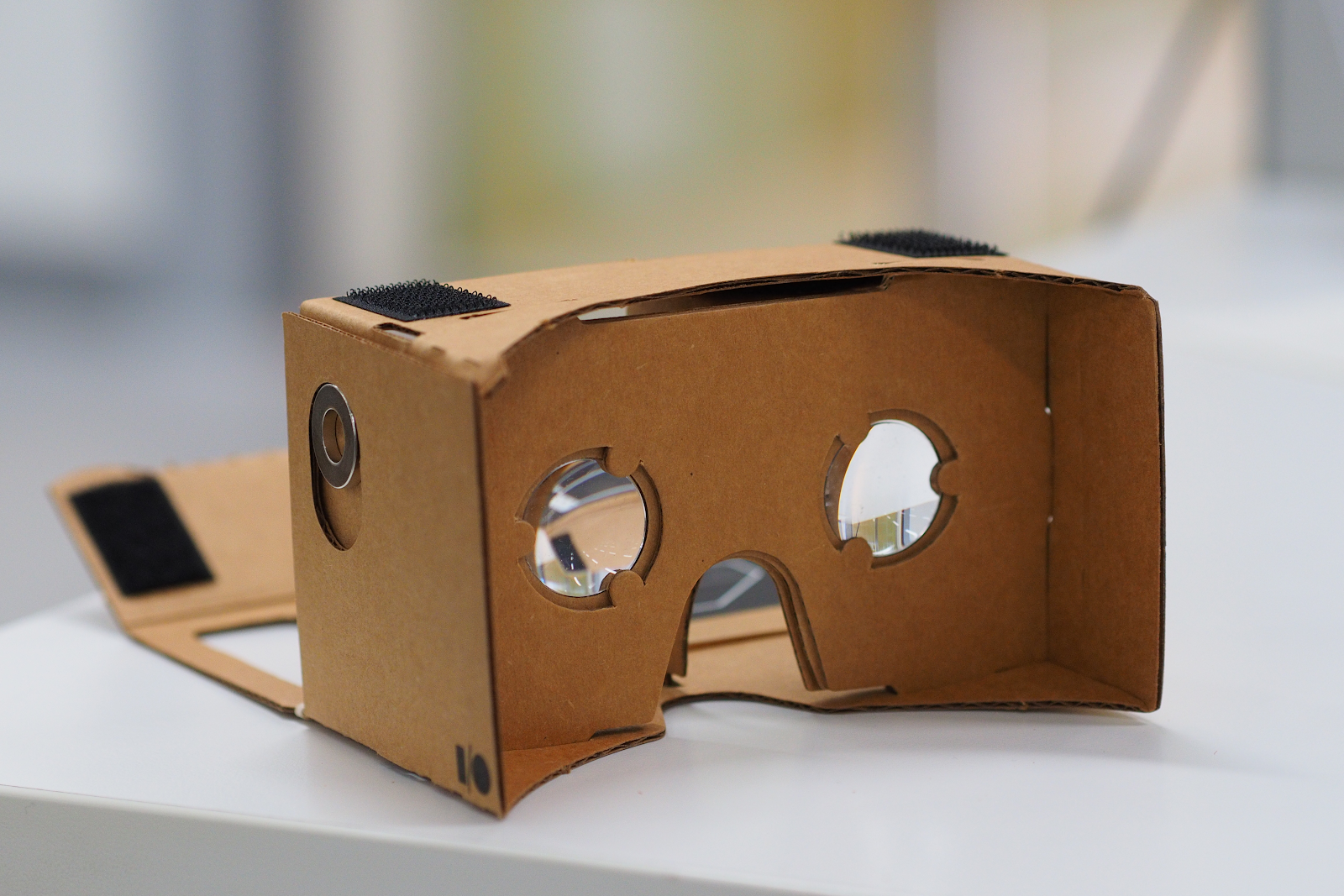
There are quite a few different makers of virtual reality headsets that just work with a cell phone now, ranging from cardboard to a sturdier plastic case.  The most popular are:


In order to use this in the classroom, it has to connect to the curriculum and our original objective - to immerse students in the learning experience.  From learning opportunities that simulate experiences, explore inaccessible locations, supplement course curriculum or travel to distant landmarks, there are some fantastic ideas for implementation.  These ideas can be made possible in a number of ways:


So, why VR?  Are there real benefits?  According to research by Samsung, 85% of teachers agree that virtual reality would have a positive effect on their students, but only 2% are actually using it in their classrooms.  These include helping students better understand the concepts, allowing for great collaboration in the classroom and increasing student motivation.


To get started, you need the gear.  This is definitely a topic I’m interested in exploring over the next few years.  If you’re interested too, get in touch and let’s work together!

Wednesday, March 2, 2016

Project-Based Learning

When thinking about assessments, we think of tests, quizzes, homework, worksheets and projects.  Projects used to be a “once in awhile” assignment, sometimes in partners or small groups, which was graded with a rubric or scoring tool.  Due to the time it took to complete, it was not the regular teaching method.  In recent years, there has been a lot of research into the benefits of project-based learning and the literacies that it develops.


Project-based learning (PBL) is defined as a teaching methodology that encourages students to gain the skills necessary so that they can solve a problem, investigate an engaging or complex question, or meet a challenge.  It fulfills standards, gives a real-world context to their learning, allows for self-reflection and continued revision, and is individualized to the needs, skills, and preferred learning of each student.  Differentiation is automatic with project-based learning!


My personal favorite part of project-based learning is when group members help each other with questions and answers as they work through their idea together.  With that said, it has its pros and cons:


  • differentiation and student choice
  • student focuses on the skills they need to learn
  • student uses their strengths to help group members
  • collaboration
  • critical thinking
  • student voice is heard
  • students practice social skills
  • students use information, media and technology literacy skills
  • students accept the idea that their first idea might not be the best and revise and refine their work throughout
  • teacher is a guide to the students
  • focus on feedback rather than grades
  • final product has a global audience beyond the classroom
  • not all members of a group contribute equally
  • absent students miss collaborative time
  • miscommunications in a group dynamic
  • teacher cannot be with every group at once
  • time-consuming to complete and to grade


Project-based learning can support the best parts of hybrid or blended learning - a small amount of direct instruction that is supported with equal amounts of collaborative and independent work.


When deciding on project-based learning units, use this guide to help you decide if you are implementing it successfully.  Please also note that in many cases, technology is a helpful tool that will create these opportunities for your students, but it is only a tool and it is not always the best one.  Can you believe I said that?!  It’s true, though.  I love e-mail, but I also love hand-written notes.


As we saw in our last post, lots of teachers across the district are already using PBL and reaping the benefits of it:
  • our gifted learners do a combined research and art project with Megan Munyat and Deanna Dincher
  • our 8th grade ELA students design and advertise a new app idea during their propaganda unit with Pam Cooper and Jen Allen
  • our AP History students created an infographic about the presidential candidates and their positions on a number of election topics, then created a screencast on it and published it to YouTube with Amy Swartz


For more information on project-based learning, check out these resources by Edutopia.

To brainstorm project ideas, see your librarian!