Showing posts with label education. Show all posts

Thursday, November 9, 2017

Flipgrid for giving every student a voice

While graphic organizers, exit tickets, and worksheets are a standard in every classroom, it is not the only way to get input from kids.  Google Classroom, Kahoot, Quizizz, and other tech tools can collect discussion answers, documents, or quick answers from students.  A tool I recently learned about, Flipgrid, is set up to accept picture, text or video responses to a prompt.  Students can see and comment on the posts of others as well.  Here’s how it might work:


  1. Teacher creates a “grid” related to a specific subject or grade level such as social studies, 3rd grade, or HS art.
  2. Teacher creates a topic related to their grid subject, such as volcanoes, narratives, or solving two step equations.  This should ask a question or require input from students.  For example, it could be, “Tell me a story using time order words,” or “How do you solve this equation?”
  3. Teacher shares the topic to the students and students give their input as a picture, text, and/or video.  That way they can talk through their learning, speaking out loud about how to complete a task, or they can show and talk about their results.
  4. Students can view and comment on their classmates’ submissions using emojis similar to Facebook.


There is an iPad app, but you can also record from the chromebook.  When you click the + to add a response, it will prompt you to use your camera and microphone.
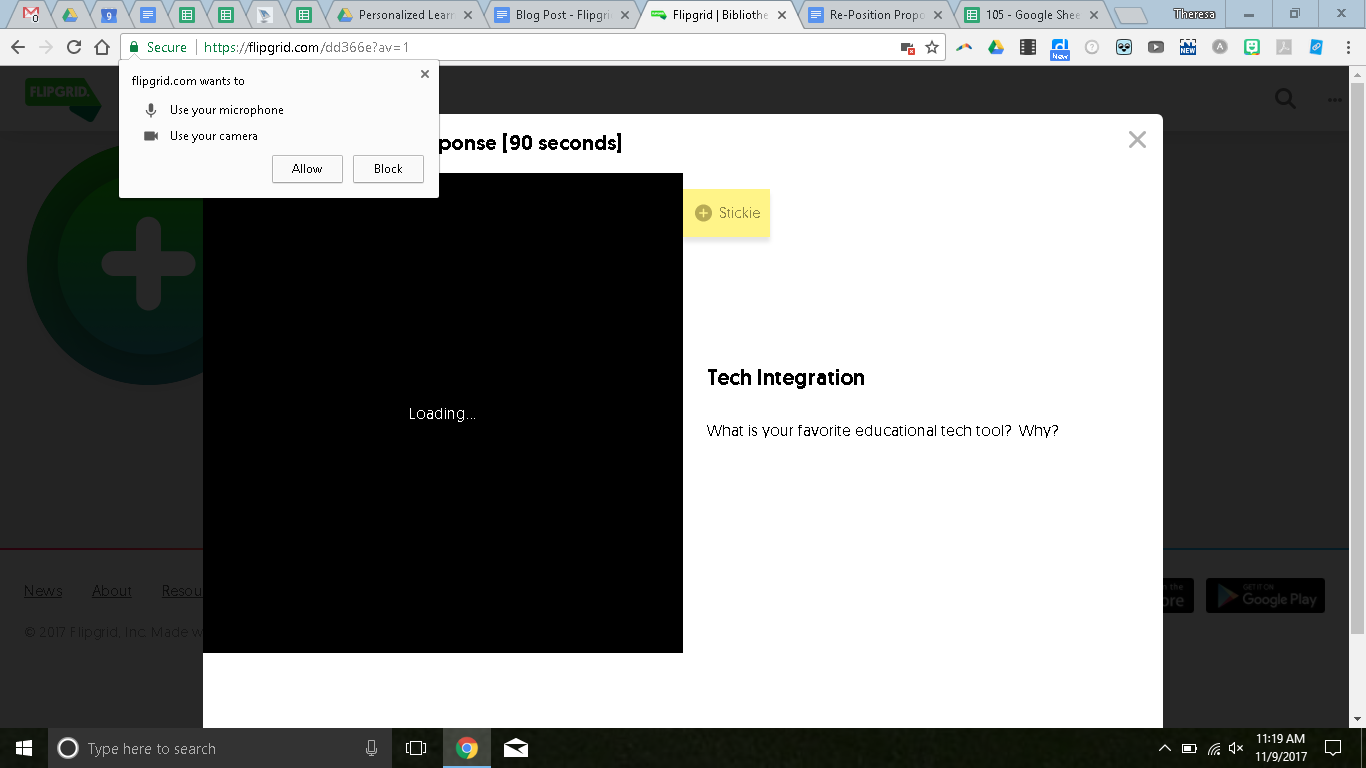


Once they allow these, then students will click the camera to record.


It will prompt the students to give their names and emails.  I would recommend you just have them put their first name and last initial.  Or just initials.  Once they post, they can view the posts from others.


You can contribute to my example here.

This could be a great first step to making great digital citizens who know how to use the tech resources for their learning.  If you have questions or need help, let me know and I’d be happy to stop by!

Monday, October 2, 2017

Newspapers in the Classroom


National Newspaper Week began in 1940.  And today, almost eight decades later, “American newspapers are demonstrating their resolve each day to help readers determine fact from fiction and to inform the nation of all the important news and issues.” (Thomas W. Newton, Chairperson, 2017 NNW)

To celebrate, this Thursday (October 5), every student and every teacher will receive a copy of the Standard Journal.

Newspapers can be used in any classroom in so many different ways, and in all content areas.  Newspapers can improve literacy, highlight everyday math and science, and connect school to the world.  They contain practical vocabulary and “something for everybody,” like sports, weather, and entertainment.

Here are just a few ideas for using newspapers in the classroom.
  • Read a map
  • Find vocabulary words
  • Study stocks
  • Compare interest rates
  • Use classified ads and sports statistics for math problems
  • Analyze advertising
  • Determine bias in editorials
  • Read current events
  • Locate spelling and grammar mistakes
  • Create a classified ad
  • Write a letter to the editor
  • Make papier mache

And here are links to more ideas:
Lesson Plan: Today’s Front Page (written by a teacher in State College)

Newspapers are also available daily in all Warrior Run Libraries. If you’d like to spread out in your building’s library, just ask!


Wednesday, September 13, 2017

Saving class time with typing shortcuts

One gripe that I have heard a lot about students in the past five years is the lack of typing skills and the way that this interrupts instructional time.  While our district has taken steps to add to the time focusing on building these skills, there’s still only 24 hours in a day, so I thought I might share some ways that you can limit the typing for students or allow them to work on these skills during free time.


  1. Use the shelf on the chromebooks or create webpage icons on the iPads.
  2. Bookmark pages that students will visit frequently.
  3. Use a URL shortener like goo.gl or tinyurl.com.
  4. Share to them in Hapara/Drive/Email and tell them where to find the link.
  5. Also in Hapara, push out a link to all students.
  6. Create a Symbaloo page for your class with all the links you need.  Students can have a shortcut to that, and then just click the tool they will use that day.
  7. Use QR codes to login (Greg is working on this for Elementary).
  8. In Chrome, use the App Launcher.
  9. In iOS, Air Drop to your students.
  10. Allow students to use one of varying typing skills websites, such as typing.com or nitrotype.com, if they finish their work early.

If you have questions or need help with these items, please let me or one of your building tech helpers know.  We will always be glad to help.  Together, we will make 21st century learners that know where to find the W on the keyboard.

Image result for typing funny

Wednesday, May 17, 2017

Mini Grants Support Classroom Innovation at All Levels

Each year since 2014, the Warrior Run Education Foundation (WREF) has asked classroom teachers for mini grant proposals.  These grants are intended to fund innovative projects or approaches to delivering curriculum, including professional development, which are supported by research and intended to increase student engagement and learning.

Jean Hormell, Chair of the WREF, says, "our goal is to encourage dreaming by teachers and to find the funds to provide those exciting innovations that our regular district budget cannot cover.  The grants give students new experiences.  Our education foundation supports teachers through mini grants because teachers know their students best, and can evaluate what enhancement will best benefit them.  [Teachers] now have the opportunity to take their students to higher levels with new strategies or equipment."

This year's recipients were:

Rickelle Davis, 1st grade
Rickelle received a grant for Osmo, a learning tool that works with iPads to "merge the power of physical play with the digital advantages of real time feedback."  Osmo helps students learn words, numbers, math, non-verbal communication, spatial reasoning, coordination, ESL, STEM, coding, and so much more.  Rickelle will utilize this incredible innovation with her first graders in the fall as part of independent and collaborative learning stations, which will encourage engagement and excitement.


Middle School Library
The middle school library received a grant for 3D printers to add to their maker space.  Due to its process, 3D printing supporting personalized and project based learning.  From idea to reality, completing the steps allows students to organize and put their plans into action.  Advanced students may use CAD programs to create plans.  Early exposure will increase interest in students, which could lead to more advanced study and career paths.  3D printing combines STEM with art, creating STEAM in the classroom.


High School Library
The high school library received a grant for an updated lounge space.  The library is used in so many ways every day, from studying to socializing and everything in between.  Students like to spread out, and enjoy doing so in a comfortable way.  Currently, the library hosts one lounge area, which is definitely the most popular spot.  There are often more students than chairs, and students drag over uncomfortable chairs or even sit on the floor to make sure they're included in the conversation.  A new lounge area will give students a place to communicate and collaborate in a comfortable way.  The high school library now has an opportunity to support students and their learning, simply by giving them a more comfortable place to sit.


Wednesday, April 26, 2017

The Super Helpful G Suite Training Extension


When we first started this blog, Liz did a post on why you should be using Google Chrome (if you aren’t already).  In addition to using chrome, you should also be signing in to Google chrome on your personal device.  If you see your name like this:


Then you are signed in to chrome.  When moving through Google pages and apps, you will remain signed in.  It will also remember you when you shut down and restart.  DO NOT USE THIS FEATURE ON A SHARED COMPUTER.  If you see this:


Then you are not signed in.  You can be signed in to Google WITHOUT being signed in to chrome.  As noted in the picture above, signing in to chrome will sync your tabs, bookmarks, history, and your other settings.  View this page for more information and instructions.

In addition to this super useful feature, check out G Suite Training.  This icon appears in the top right hand corner of your browser on most G Suite apps (Drive, Docs, Slides, Sheets).  It autopopulates as an extension on your pages.


Depending on the page, it will give tips and tricks or instructions on how to use it (as interactive lessons).  It invites you to learn about features that you may not have already known about.  Here’s an example for Google Docs:


You could use it to learn how to use a feature, explore new features that you didn’t know about, or refresh your memory on something you haven’t used in a while.  Check it out and let us know what you think!

Wednesday, April 5, 2017

Nearpod and VR

As education moves towards a focus on authentic learning (thank goodness!), there is also a push to move beyond the classroom walls.  One way that teachers are doing this is through virtual reality.  Many teachers are already taking advantage of the virtual reality headsets available in the middle and high school libraries.  Our students have “left” the classroom to experience coral reefs, Mars, Versailles, Machu Picchu, and other places otherwise unavailable to us.


Nearpod is now offering this opportunity embedded into what is already an interactive lesson when using their software.  Teachers interested in using it, make sure you sign in with Google!  Their program, available across all devices, allows you to direct what is showing on the screen and collect formative assessments from students throughout the lesson.  One of these options can now be a 360 degree view of places around the world...and the universe!


Let’s try it out!  The lesson below is a ready-made virtual reality lesson from Nearpod which is free and it goes through different types of Native American Housing.  They recommend this lesson for grades 4-9, and students can work through it on a chromebook, with a mobile device, or with a VR headset (for the full immersion experience).


When you create your own lessons, you can choose to include a few VR experiences (known as a field trip) for your students in that lesson.  Or, you can choose from the pre-made lessons from Nearpod.  Many, but not all, are free.  They are all of a very high quality.


If you are interested in trying it out, make sure you redeem the free 6 month subscription to Nearpod Gold Edition by following these steps:
  1. Create an account (with GOOGLE!) if you have not already done so.
  2. Go to nearpod.com/redeem and enter the code PETE&C17.

That’s it!  See your building techspert or me if you have questions!

Thursday, March 23, 2017

Google NEXT '17 Highlights for Teachers

Google recently held a conference in San Francisco entitled Google NEXT ‘17.  While I wasn’t there, I have been reading a lot about news and announcements coming out of this event.  There are lots of exciting things going on, so I thought I would share some of them with you.  I am certain that they will impact your teaching in some way in the next five years.  

  1. Team Drives - Greg has already shared this one with you, which allows you to create a shared space in Google Drive for teams that work together often.  This could be departments, grade level teams, or classes.  Any file that is placed into this area can be manipulated by any member of the team, so plan accordingly.  For more information on team drives, watch this video.
  2. Hangouts Meet and Hangouts Chat - Google Hangouts is getting an overhaul.  If you use this to collaborate with colleagues, you may have noticed a number of changes over the past few years and none of them seemed efficient.  This is an attempt to compete with a company known as Slack to create a place for whole teams to collaborate in real time.  There are improved video features, too.  I just want the original extension back, but I’m ready to try it out!
  3. GMail Add-Ons - You may use some add-ons in other G Suite products, such as Doctopus or Flubaroo in Sheets.  Now you will be able to add functionality to your email with add-ons for GMail.  Right now they are just announcing that developers can start creating, so once something great comes out, we will let you know.
  4. Jamboard - Will the next interactive whiteboard be mobile?  All other classroom tech is.  This whiteboard comes on a stand and can be used by a whole team at once, to allow for seamless collaboration.  I would love to get my hands on one, but they price at $4,999.00!

I’m beginning to feel like every blog post I make has a list.  I hope you appreciate lists, cause I’m definite a list creator.  Check these things out because they will definitely impact your working in the future!

Friday, February 24, 2017

Green Screen

If you've ever watched the weather segment on your local news, you've experienced green screen technology.  While it isn't exactly brand new, it is still exciting!  

What is green screening exactly?
It is a video technique that utilizes a green background in front of which moving subjects (like students!) are filmed and which allows a separately filmed background to be added to the final image.

What equipment does it involve?

  • Green background - in the HS and MS libraries, we have green screen kits that look like the picture below
  • Green screen app - we have an app called DoInk on our iPads for students to create images and videos using different backgrounds
Image result for chromakey green screen kit


How can we use it?
Honestly, the possibilities are endless!  To give you a few starters,
  • Mrs. Travelpiece's 9th grade English students have filmed a few green screen pieces to use within their book trailer videos.
  • 5th grade science students learned about volcanoes with Mrs. Kramer and Ms. McCormick.  One of the options for the summative assessment was to "report live" from an erupting volcano.  So their background was a volcano, then they filmed themselves giving a news report.  Here is an example:


Why should we do green screen projects?
Projects like this lend themselves well to alternative assessments and creative project-based learning.  Students will learn to plan for multimedia pieces, like a story board.  They would possibly need to write scripts, collect props, find images or videos for their background.  Students acquire knowledge in lessons, then apply it in this sort of project.  Secondary skills are developed as students work with classroom content.

Do green screen videos need people as subjects?
No!  Many green screen projects involve inanimate objects, animation, and stop-motion animation.  So many options!

This sounds cool!  How do I get started?


Thursday, February 16, 2017

PETE&C Takeaways

Earlier this week, I accompanied a few colleagues to the annual Pennsylvania Educational Technology Expo and Conference (PETE&C) in Hershey, PA.  This is a wonderful (but very crowded) conference organized by PAECT every year.  When thinking about what I want to share out from this opportunity, here are my top takeaways that I hope you can start conversations around:


  1. Seesaw is the go-to platform for digital portfolios in the elementary school setting.  Check out the slideshow by the presenters.
  2. Aurasma is changing the way we interact with our reality, allowing opportunities to scan and see augmented versions of reality.  Some schools use it to give tours of their schools or for seniors to be a visible part of their yearbook.  Matt Hill had the great idea to do this with our Hall of Fame!
  3. The new ISTE standards released last summer highlight so many opportunities for student engagement and active learning.
  4. Vibby allows you to take a video from the internet and crop it so you are only showing your audience the part that you want them to see.
  5. PHeT contains a wide variety of online interactive science activities.
  6. It’s possible for a teacher to learn alongside a student in a content area that they are interested in but not an expert.
  7. It’s important to give students a voice in the changes at their school.
  8. Learning is more powerful when it is directed by the students, such as the example of a session about Breakout boxes conducted by students at a professional conference!
  9. You can do digital Breakout boxes (if you solve the Poe-ch the Raven one, give me and Liz the answer!).
  10. Digital portfolios don’t need to be fancy.  Google sites is the perfect option for students to collect their learning for Google schools.

If you want to see our notes, they can be found here. I hope this will inspire someone to check out something new or start a conversation about innovation for your classroom.  Speaking of innovation, there’s a new WR Twitter account - @wrsdinnovate.  Give it a follow.