Showing posts with label chromebook. Show all posts

Wednesday, May 2, 2018

Five More Add-Ons for Google Docs

Inspired by Theresa's post from last week, and Greg's post from March, here are five more add-ons for Google Docs. Just like add-ons do in G-Forms, they allow you to extend the use of Docs and make it work hard for you.


Scroll to the bottom to learn how to get and use add-ons in Google Docs.


Allows you to easily insert accents for different languages from a sidebar in your Doc.


Allows you to type and hand write notations for mathematics and chemistry.


Allows you to quickly and easily create a form text in a Doc.  Teachers can turn a paper test into an online test with just a few clicks.


I know it's 2018, but some people still like faxes.  This add-on allows you to add a fax number and cover page to a Doc.  Click send, and the add-on sends the fax!  You even get an email when it arrives.


Users can embed videos in Google Slideshows, but not Docs.  But with this add-on, now you can!  Add videos to Google Docs that you share with your students, so that students no longer need to leave the doc to watch a helpful video.


How to GET add-ons in Google Docs
In Google Docs, click Add-ons > Get add-ons, then look for the add-on you want.  Once you find it, click the blue button to add.


How to USE add-ons in Google Docs
In Google Docs, click Add-ons > the add-on you want to use.


What add-ons do you use??  Let us know what else is out there in the comments.

Wednesday, January 17, 2018

Everfi

The best type of educational technology is robust, flexible and FREE. Those terms are not normally used together. Fortunately, it appears like Everfi might fit this mold. Since they are funded by outside resources, they are free to us!

Everfi has a database of educational and interactive resources to teach concepts from financial literacy to college and career readiness to STEM. Each one has a grade span that it works best for, so it’s definitely worth considering.


One of the weaknesses of Everfi right now is that they do not have single sign-on. That’s a big deal to me because when a website has that, we know Google is not sharing the child’s name with them, but instead sharing a “code” with which to recognize them. Being a little concerned about CIPA and COPPA compliance, I decided to check into it more. It turns out that many schools in our area are already using this for some of their courses, such as financial literacy in the high school.

Students would have to go to everfi.com/register and make an account, so this should really ONLY be used with students 13 or over UNLESS you are going to get permission from their parents to create an account for them. Please also note that Warrior Run student accounts cannot receive outside emails. A teacher can add students from the teacher dashboard, but the same rules would apply for privacy compliance.


Once a student has successfully completed one of the courses, you can print a certificate for them.


Here is an example video overview for the “Ignition” course on Digital Literacy and Responsibility.

Everfi may be free, robust and flexible, but there will be an initial setup for the teacher, and it’s not ideal for every grade level. If you teach one of the topics listed in their K-12 resources and are looking for something that students can work through independently that is also engaging, I recommend you give it a try.

Monday, November 6, 2017

Focus

As a parent of two who recently put passcodes on her children’s iPads, I am aware of the pull that technology offers to children.  As a person who has tried to put most of the content I need on a day-to-day basis on my phone so it’s always accessible, I understand how for some of us the device has become a constant distraction.


With that in mind, I offer some ways to gain, keep, or re-focus, whether you are trying to do this with your students or for yourself. This means using a device AND staying on task!


For students, secondary teachers can make use of Hapara to focus a student’s browsing by only allowing them to visit certain sites for a determined period of time.  Teachers using iPads can turn on guided access to limit the areas on the screen with which students can interact.  Having your students use their computers with their backs to you (and their screens facing you) can also help to make sure they are on task.  Ultimately, though, it’s acceptable and healthy to put away the devices and have a face-to-face conversation.


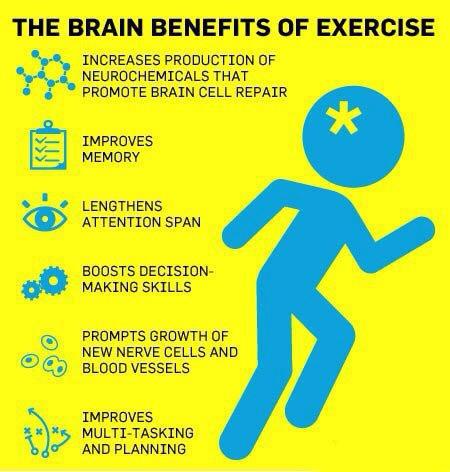
For teachers, there are several apps that will remind you to take a brain break: StandApp, Stand Up!, and Move It.  If you and your students are spending all period sitting at your desk, working on research, a presentation, or otherwise focusing on a task, it will be beneficial to you to get up and move, even if only for a stretch.  A Stanford study finds that walking is good for creativity, so it may be a good idea to work this into the lesson.  


Another aspect related to this are desk styles.  We have traditional table and chair, but now there are standing desks, fidget bands, yoga balls, node chairs, and the list goes on.  As someone who works with Greg, I can definitely see how these might be helpful!  :)

Wednesday, September 13, 2017

Saving class time with typing shortcuts

One gripe that I have heard a lot about students in the past five years is the lack of typing skills and the way that this interrupts instructional time.  While our district has taken steps to add to the time focusing on building these skills, there’s still only 24 hours in a day, so I thought I might share some ways that you can limit the typing for students or allow them to work on these skills during free time.


  1. Use the shelf on the chromebooks or create webpage icons on the iPads.
  2. Bookmark pages that students will visit frequently.
  3. Use a URL shortener like goo.gl or tinyurl.com.
  4. Share to them in Hapara/Drive/Email and tell them where to find the link.
  5. Also in Hapara, push out a link to all students.
  6. Create a Symbaloo page for your class with all the links you need.  Students can have a shortcut to that, and then just click the tool they will use that day.
  7. Use QR codes to login (Greg is working on this for Elementary).
  8. In Chrome, use the App Launcher.
  9. In iOS, Air Drop to your students.
  10. Allow students to use one of varying typing skills websites, such as typing.com or nitrotype.com, if they finish their work early.

If you have questions or need help with these items, please let me or one of your building tech helpers know.  We will always be glad to help.  Together, we will make 21st century learners that know where to find the W on the keyboard.

Image result for typing funny

Wednesday, April 5, 2017

Nearpod and VR

As education moves towards a focus on authentic learning (thank goodness!), there is also a push to move beyond the classroom walls.  One way that teachers are doing this is through virtual reality.  Many teachers are already taking advantage of the virtual reality headsets available in the middle and high school libraries.  Our students have “left” the classroom to experience coral reefs, Mars, Versailles, Machu Picchu, and other places otherwise unavailable to us.


Nearpod is now offering this opportunity embedded into what is already an interactive lesson when using their software.  Teachers interested in using it, make sure you sign in with Google!  Their program, available across all devices, allows you to direct what is showing on the screen and collect formative assessments from students throughout the lesson.  One of these options can now be a 360 degree view of places around the world...and the universe!


Let’s try it out!  The lesson below is a ready-made virtual reality lesson from Nearpod which is free and it goes through different types of Native American Housing.  They recommend this lesson for grades 4-9, and students can work through it on a chromebook, with a mobile device, or with a VR headset (for the full immersion experience).


When you create your own lessons, you can choose to include a few VR experiences (known as a field trip) for your students in that lesson.  Or, you can choose from the pre-made lessons from Nearpod.  Many, but not all, are free.  They are all of a very high quality.


If you are interested in trying it out, make sure you redeem the free 6 month subscription to Nearpod Gold Edition by following these steps:
  1. Create an account (with GOOGLE!) if you have not already done so.
  2. Go to nearpod.com/redeem and enter the code PETE&C17.

That’s it!  See your building techspert or me if you have questions!

Wednesday, October 19, 2016

Google Explore

“This presentation looks boring and bland.  How do I make it better?”

If this sounds familiar, Google is a step ahead of you -- they launched their updated EXPLORE feature just this month.

EXPLORE has been a feature of Google Sheets for quite some time, allowing users to see data in color graphs and summaries.

But now users can EXPLORE in Google Slides and Docs as well!

In Slides (Google’s version of PowerPoint), EXPLORE prompts users to enhance the look and feel of individual slides and entire presentations.  As the Google Docs Blog explains, “as you work, EXPLORE dynamically generates design suggestions… apply a recommendation with a single click.”  This saves you time AND makes you look good!


Using EXPLORE in Google Slides is an excellent addition for making intriguing presentations.  With Google’s integration of presentation themes and compatibility with third-parties like Slides Carnival* and Slide Share**, everyone can create and update presentation masterpieces.

In Google Docs, use EXPLORE to get suggestions based on your document’s content.  Recommendations could include images and content, as well as related information from the web or YOUR DRIVE.


Read more about Google’s EXPLORE feature on their blog: "EXPLORE in Docs, Sheets and Slides makes work a breeze -- and makes you look good too."


* Slides Carnival hosts Google Slides themes for all occasions.  Simply download a theme, then import it in Google Slides.

** Slide Share allows you to share what you know through presentations and infographics -- you can browse, download, and edit what others share too.

Wednesday, May 4, 2016

Useful tech tips to save time

Based on some recent interactions I’ve had with students and teachers this week, I thought everyone might enjoy learning a few tips that helped someone out.


A student’s browsing history


While working on a research project, I suspected that a student was more off-task than on-task.  I checked his browsing history in chrome and it showed me that he had been opening other assignments for other classes and had not even opened what he was supposed to be working on during that time.  I used this opportunity to re-direct him and get him on task.

To view his browser history, I used the 3 horizontal lines in chrome (aka the hamburger menu) and selected, “History.”  From there I could see all the recently closed tabs and click again for further information.  It will also show from the past few days or sites that are accessed on other pages.  Students are not able to clear their browser history because this option is turned off for student accounts. This can also be helpful if you closed a tab that you need back.


Finding something in Drive/Gmail

Need a file but can’t remember the name?  In the search bar at the end on the right, there is a small triangle with the point facing down.  Click this and it will allow you to choose more options to further filter your search results.  These can include who the item was from, what type of file it is, or if it contained attachments.  This can save you the headache of trying to locate it in your folders (especially if you don’t bother with folders, like me).

Gmail advanced search

Google Drive advanced search

We hope these tips can help save you time or sanity as the end of the year really picks up pace!

Thursday, April 28, 2016

Social Studies and Educational Technology


We have shared a lot of “big picture” blogs with you lately, so we narrowed our focus to one content area this week.  In coming weeks, we’ll focus on specific content areas, one at a time.  In recent weeks, we’ve highlighted math, science, and elementary classrooms.  This week, we focus on SOCIAL STUDIES.  In the post below, you’ll find TOOLS, RESOURCES, and IDEAS related to SOCIAL STUDIES and EDUCATIONAL TECHNOLOGY*.  


TOOLS

Create free interactive timelines. Offering a Google single sign on, HSTRY is a free digital learning tool which promotes collaboration and engagement in the classroom.  You can browse and utilize their library of timelines, or you and your students can create your own.  Mrs. Wolfe has used this web tool with her 10th grade World Cultures II students, experiencing exciting results!

This is an interactive timeline that spans across 14 billion years of history, from the Big Bang to 2015.   The site draws historical events from Wikipedia and self-updates daily with new recorded events.  Users can view decades or eons, specific events or categories.  It was created as an art/design final project.

TimeMap's World History Atlas is the most comprehensive history atlas available on the internet.  Use it to visit any civilization, nation or empire and see the context, chronology, connections and big pictures of history.  This history atlas makes history easy to visualise and navigate, through both time and place!

RESOURCES

Unlimited access to hundreds of leveled news articles and Common Core–aligned quizzes, with new articles every day.  Every article at five (!) levels: Newsela makes it easy for an entire class to read the same content, but at a level that’s just right for each student.

Designed by Stanford History Education Group (SHEG), this resource "engages students in historical inquiry."  The site provides lessons that "revolve around a central historical question and feature sets of primary documents designed for groups of students with diverse reading skills and abilities."  It has resources for US History, World History, and Historical Thinking.  From what I saw today, Read Like a Historian seems pretty customizable.  It is interesting resource to build knowledge AND skills in students.

The Karpeles Library is the world's largest holding of important original manuscripts and documents.  The website allows users to view and read these documents (for free).  So what?  Many original documents are written in elaborate cursive, which is difficult for many to read.  So this archive gives users the digital "translation" alongside the original document. And many of them are interactive!  This seems to be an accessible way for students to access primary sources.  Content includes arts, political history, religion, war, literature, and science.


IDEAS

Mr. Shaffer’s and Mrs. Swartz’s 9th and 10th grade history classes created infographics and screencasts to share information on presidential candidates and campaign issues.  This could be done at any level for any topic!

Features several ideas for integrating edtech in the social studies classroom.  The first idea is about CoveritLive, a publishing tool that allows users to instantly publish their blog posts, which allows it to serve somewhat like a chat room.  The teacher presents information, and students simultaneously live blog about the content.  (Each comment needs approval, so internet safety is a feature.)

Watch how a social studies teacher incorporates into his classroom through traditional and digital literacy skills. (5:00 minute video with additional resources).


----------------------------------------------------------------------------------------------------------------------------
* Please note, just because technology is new, doesn’t mean it’s always better.  If traditional flashcards work for you and your students, keep using them!  But if StudyBlue could work for you, ask some of your kids to give it a whirl.