Showing posts with label gmail. Show all posts

Wednesday, November 29, 2017

Making Gmail More Efficient

If you’ve ever felt overwhelmed by your Gmail account, I assure you, you’re not alone.  We all receive a bazillion emails all day long, from colleagues, students, administrators, advertisers, organizations… so. many. emails.  But we need email to communicate.

So today’s blog post is how to make Gmail less overwhelming and more efficient.

Turn Off Sharing Notifications
Our students share Google files with us daily.  But it’s frustrating to receive an email for each file every time a student shares something.  It can clog up our inboxes real quick.  To combat that, ask your students to turn off sharing notifications when they send you a file.  The file will still land in your Shared folder, but you will not receive an email notification.

Archive vs. Delete
I love getting rid of things.  Love it!  But I also like to save things just in case I need them later.  This is when you should archive emails, instead of deleting them.  Archiving allows you to clear your inbox (woo hoo!) without the anxiety of “what if.”  As Google says, “archiving removes messages from your inbox, but keeps them in your account so that you can always find them later.”  Bingo!  So the next time you’re waffling over an email, click the archive button instead the trash button.  Benefits to this include:
  • You’ll still have the email under the All Mail label, so you can search for it easily.
  • If someone replies to that email, it will come back to your inbox.
  • Your inbox is clear!

Inbox Setup
There are several ways to set up your inbox.  To change to one or the other, click “Settings,” under Settings .  Then choose “Inbox.”

  1. By default, Gmail gives your inbox tabs, like Primary, Social, Forums, etc.  Your emails will be auto-sorted into these categories, or you can sort them yourself.  Some people really like this, as Google sorts through things for you; it keeps your “real” emails under the Primary tab, then sorts coupons under Promotions and Facebook under Social.  To change/add/delete any tabs, click “Configure Inbox,” under Settings .
  1. Choosing “Unread first” will separate your emails into two categories: “unread” at the top, and “everything else” at the bottom.  I like to use my inbox as a “to do list,” so this works best for me.
 
  1. Three more layout options include “important first,” “starred first,” and “priority inbox.”  They are variations on the “unread/everything else” layout, but allow for more customization.

Conclusion
Email is a necessity but can be overwhelming and/or frustrating.  But Gmail can be made more efficient through a few simple tweaks, like asking your students to turn off sharing notifications, archiving emails, or choosing a different inbox layout.  Don’t let a clogged inbox keep you down!

Even More Helpful Stuff

Thursday, March 23, 2017

Google NEXT '17 Highlights for Teachers

Google recently held a conference in San Francisco entitled Google NEXT ‘17.  While I wasn’t there, I have been reading a lot about news and announcements coming out of this event.  There are lots of exciting things going on, so I thought I would share some of them with you.  I am certain that they will impact your teaching in some way in the next five years.  

  1. Team Drives - Greg has already shared this one with you, which allows you to create a shared space in Google Drive for teams that work together often.  This could be departments, grade level teams, or classes.  Any file that is placed into this area can be manipulated by any member of the team, so plan accordingly.  For more information on team drives, watch this video.
  2. Hangouts Meet and Hangouts Chat - Google Hangouts is getting an overhaul.  If you use this to collaborate with colleagues, you may have noticed a number of changes over the past few years and none of them seemed efficient.  This is an attempt to compete with a company known as Slack to create a place for whole teams to collaborate in real time.  There are improved video features, too.  I just want the original extension back, but I’m ready to try it out!
  3. GMail Add-Ons - You may use some add-ons in other G Suite products, such as Doctopus or Flubaroo in Sheets.  Now you will be able to add functionality to your email with add-ons for GMail.  Right now they are just announcing that developers can start creating, so once something great comes out, we will let you know.
  4. Jamboard - Will the next interactive whiteboard be mobile?  All other classroom tech is.  This whiteboard comes on a stand and can be used by a whole team at once, to allow for seamless collaboration.  I would love to get my hands on one, but they price at $4,999.00!

I’m beginning to feel like every blog post I make has a list.  I hope you appreciate lists, cause I’m definite a list creator.  Check these things out because they will definitely impact your working in the future!

Wednesday, May 4, 2016

Useful tech tips to save time

Based on some recent interactions I’ve had with students and teachers this week, I thought everyone might enjoy learning a few tips that helped someone out.


A student’s browsing history


While working on a research project, I suspected that a student was more off-task than on-task.  I checked his browsing history in chrome and it showed me that he had been opening other assignments for other classes and had not even opened what he was supposed to be working on during that time.  I used this opportunity to re-direct him and get him on task.

To view his browser history, I used the 3 horizontal lines in chrome (aka the hamburger menu) and selected, “History.”  From there I could see all the recently closed tabs and click again for further information.  It will also show from the past few days or sites that are accessed on other pages.  Students are not able to clear their browser history because this option is turned off for student accounts. This can also be helpful if you closed a tab that you need back.


Finding something in Drive/Gmail

Need a file but can’t remember the name?  In the search bar at the end on the right, there is a small triangle with the point facing down.  Click this and it will allow you to choose more options to further filter your search results.  These can include who the item was from, what type of file it is, or if it contained attachments.  This can save you the headache of trying to locate it in your folders (especially if you don’t bother with folders, like me).

Gmail advanced search

Google Drive advanced search

We hope these tips can help save you time or sanity as the end of the year really picks up pace!

Wednesday, January 6, 2016

Get Started with Google Hangouts


Google Hangouts functions like chat (think instant messenger) and video chat (like Skype or FaceTime).  You can use it on ANY device - desktop, laptop, tablet, phone.  Not only can this web tool make your life easier, you can use it in your classroom with your students and colleagues as well.


MAKE LIFE EASIER


Everyone likes when products make life easier, right?  I mean, I do.  Google Hangouts is one my favorite tools for communication and collaboration.  

  • Contact colleagues without sending yet another email.  This comes in handy for quick questions, tracking down a student, or making decisions, among other things.
  • Join a meeting virtually that you’re unable to attend in person. You can do this via the chat feature OR the video call feature.
  • Group conversations more efficiently.  Think about clubs/groups co-advisors, school or district teams; students can also use it for group work in and outside of school


USE IN THE CLASSROOM


Beyond making lives easier, Google Hangouts is an incredible tool to use in the classroom as well.  Think student collaboration, guest speakers, virtual field trips… the list goes on!


GET STARTED


To get started using Google Hangouts, you’ll need to find your preferred method of access (there are several).  You can…


For future reference, bookmark this blog post or download Google’s Cheat Sheet.  

Thursday, December 3, 2015

Canned Responses in Gmail

There are a number of ways to use Google to save you time.  One feature you may not have considered is Labs in Gmail.  These are experimental features that enhance the layout, function and features of Gmail.  One that you might find particularly useful, especially if you often find yourself replying with the same answer or wanting to let people know that their message has been received, is called Canned Responses.

Take this scenario: You get an email from a parent about an upcoming event.  You want to let them know that the information they are requesting is still to be determined.  You type a response and hit send.  Then you get another.  Now you have to re-write the same message, right? Nope. Save time by creating a canned response that you can select easily from the new message window.


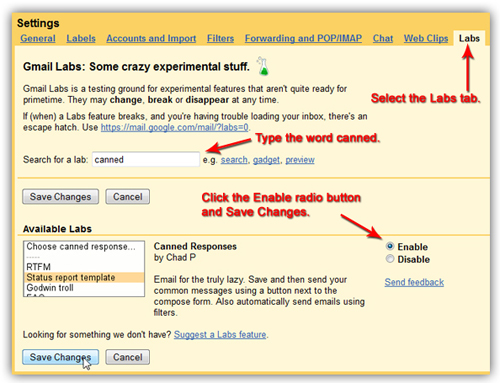
Before you can use this feature, you have to enable it in settings.  To go to settings, click the gear icon on the right hand side of gmail.  From there, choose “settings”.


Follow the instructions in the graphic above:
  1. Select labs
  2. Search for the word “canned
  3. Under available labs, look for “Canned responses
  4. Click the radio button that says, “enable
  5. Click “save changes” at the bottom.


Now when you start a new message, you should be able to type a message, then click the small triangle in the bottom right hand corner to save it as a canned response.  These can be as short or as long as you want.


Do you prefer visual help?  Try checking out a video tutorial!

Do you get scared to make too many changes in your settings for fear you won’t be able to change it back?  Ask your building librarian for help!  We love helping to make your life easier.